Introduction
EaseAccess24 widget is an accessibility widget that helps you make your website more inclusive and user-friendly.
In this guide, you’ll learn how to set up the widget, get your Embed Key, and correctly integrate it into your website — including the required setup for the Astro Framework.
Step 1: Log In to EaseAccess24
Go to app.easeaccess24.com and log in with your account.
If you don’t have an account yet, register and sign in.
Step 2: Complete the Payment Process
Before you can use the widget, you need to finish the payment process inside your dashboard.
Once the payment is confirmed, you’ll gain access to the integration features.
Step 3: Add Your Domain
Navigate to the “Integrate” page in the EaseAccess24 dashboard.
There, enter the domain where you will use the widget (for example: `yourwebsite.com`).
This step is required so the widget works only on authorized domains.
Step 4: Copy Your Embed Key
After adding your domain, the system will generate your Embed Key.
Copy this key — you’ll need it in the script below.
Step 5: Add the Widget Script
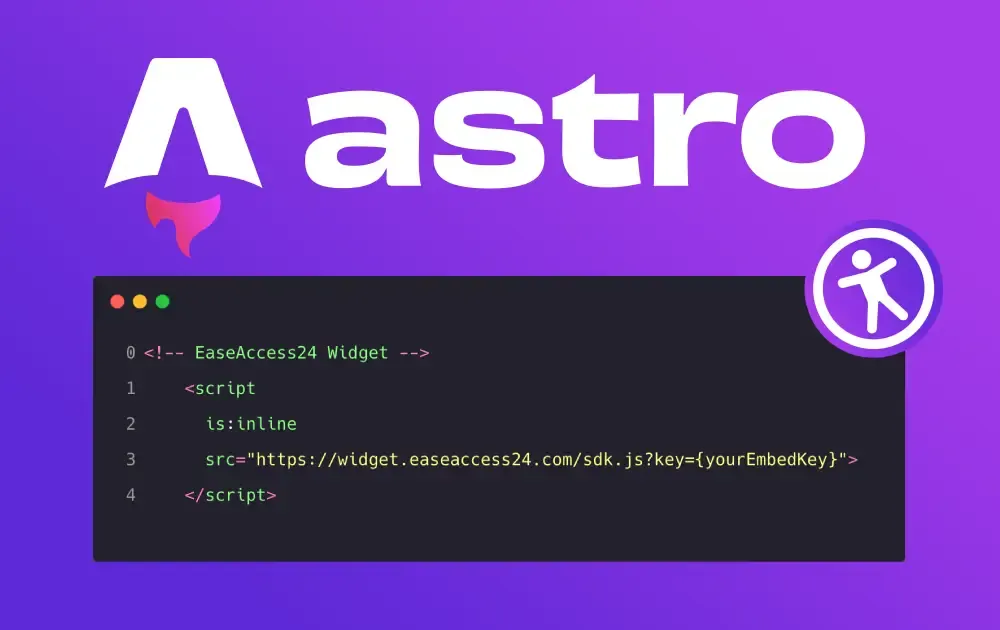
Paste the following script into the <head></head> section of your website:
<!-- EaseAccess24 Widget -- >
<script
is:inline
src="https://widget.easeaccess24.com/sdk.js?key={YourEmbedKey}">
</script> <br/> <br/> Now replace {YourEmbedKey} with your actual key. Example:
<br/> <!-- EaseAccess24 Widget -- > <br/> <script is:inline src="https://widget.easeaccess24.com/sdk.js?key=abcABC1234"> </script>
In Astro, when you load an external script using the src="" attribute, you must include the is:inline attribute.
Why?
Because Astro tries to optimize and bundle scripts automatically.
External scripts with src cannot be optimized, so Astro requires is:inline to understand:
“Keep this script exactly as it is. Don’t move it, don’t transform it — include it directly in the HTML.”
Without is:inline, the script will not load in Astro.
Example: Adding the Widget in BaseLayout.astro
Here’s how to place the widget in your Astro layout:
<html lang="en">
<head>
<!-- EaseAccess24 Widget -->
<script
is:inline
src="https://widget.easeaccess24.com/sdk.js?key=abcABC1234">
</script>
<!-- Your other head elements here -->
<meta charset="UTF-8" />
<meta name="viewport" content="width=device-width, initial-scale=1" />
</head>
<body>
<slot />
</body>
</html> <br/> Just replace the example key (abcABC1234) with your actual Embed Key.
Conclusion
Integrating the EaseAccess24 widget is straightforward:
- Log in
- Complete payment
- Add your domain
- Copy your Embed Key
- Insert the script into your HTML
- (For Astro) Remember to use is:inline
Once installed, the widget will automatically appear and enhance your site with powerful accessibility features.
If you want to customize or style the widget further, you can explore more options in the EaseAccess24 dashboard in the "Customise" page.
Happy building! 🚀